Collada plugin for After Effects
More info here
More info here

Installs a button that runs a script for combining modelspace and workspace animations into one d3d workspace render sequence. Script can also be used to bake workspace animations to modelspace animation via the autokey setting in modelspace and for rendering command script based animations.
persistent base install v3 required
SyncSpecial.tsx - Model tsx plugin
A version of this script comes pre-installed in the Unofficial trueSpace Updates (soon) - https://www.united3dartists.com/forum/viewforum.php?f=55
UU differences - uu changes not out yet, list based on communications
https://grizzlypeak3d.github.io/DJV/index.html DJV can be used to playback the resulting image sequence.
The Unofficial Updates has Sequence Player in the Blue Custom Toolbar
The default options can be used to render Model and Workspace animations together using the D3D Renderer. Extra options are required to render animated NURBS, Metaballs and Stand Alone Deformations
Render to File wll render image files to disk. Uncheck to preview an animation without creating any image files.
Add the AutoRecord Bake and Bake Selected Only options to bake a workspace animation for a selected object into modelspace.
Use Bake Selected to Workspace to bake from modelspace to workspace.
Protection stops Modelspace from altering the Workspace materials.
Material protection is needed for NURBS, metaballs and particles that use workspace materials.
If trueSpace runs out of memory during the run it will stop, set itself up to continue from where it left off and give a "restart truespace" message to the user. After restarting the Resume Previous Render will be checked and when pressing Start it will begin from where it left off.
Metaball and NURBS objects with shape change animation both require the Special Mesh Processing to be active.
NURBS require the additional step of a name change with a "_SPECIALMESH" postfix
The mesh object must have some animation even if it's too small to see in order for the sa deformer to change it's shape.(tS bug?)
The scene(scn) and or the sa deform object(cob) should be saved before the model view is closed. If not the sa deform will be wrecked. It will also be wrecked when tS is closed.
Any material change in workspace will wreck the sa deform object.

This dialog opens when Render to File is checked and the Start button has been pressed.
From Window - Width and Height from the active 3D window size.
Width and Height - render size.
To Window - set the active 3D window size from the Width and Height values.
Set from Timeline - get the sequence starting number from the timeline start frame.
Reset - set animation from and to frames from the timeline start and end values.
Use this panel to render a model view animation using the D3D Renderer or to render only the Workspace D3D view when Model View Processing is unchecked.
Usually the Workspace only render would be combined with the advanced script processing tools.

Render to File - save D3D animation to an image sequence
Hide Cameras - hide cameras during the render
Hide Lights - hide lights during the render
Defaults - set all options to their default values
Model View Processing - include model view animations in the render
AutoRecord - turn on model view autorecord setting before the render starts
Selected Only - only set keys for the selected object when model view autorecord is on, AutoRecord is required
Bake Selected to Workspace - bake modelspace animation to workspace for the selected object
NURBS and Metaballs - open the NURBS and Metaballs processing panel
Stand Alone Deform - open the Stand Alone Deformation processing panel
Protection - open the Protection processing panel
Resume Previous Render - if memory usage goes too high the render will stop and this will be checked
Start - open the Render to File dialog or start the preview render. If the render was stopped due to memory limitations the Resume Previous Render will be checked and render/preview will continue from the stopping point.
Cancel - stop the current render/preview run
When AutoRecord is on and Selected Only is unchecked keyframes will be created for all scene objects that have animation, not just the selected item.
Use this panel to render metaballs or model view vertex animation assigned to NURBS object. The tsx plugin will process metaballs and any mesh that has a name postfix of "_SPECIALMESH"
NURBS and Metaball objects will have their layer changed and this will cause a synchronization from Model to Workspace
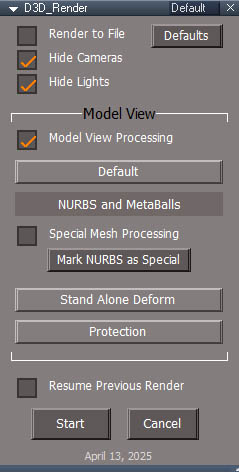
Model View Processing - required for NURBS processing
Default - open the default panel
Special Mesh Processing - turn this on to process Metaballs and NURBS objects that have vertex animations and stand alone deform targets
Mark NURBS as Special - convenience button will add the "_SPECIALMESH" postfix to the name of the selected NURBS objects
Stand Alone Deform - open the Standalone Deformation processing panel
Protection - open the Protection processing panel
Use this panel to protect model view stand alone deformations.
The Target is the mesh that will be deformed
The deformer is protected by syncing everything in the scene except for the deformer.

Model View Processing - required
Default - open the default panel
NURBS and Metaballs - open the NURBS and Metaballs processing panel
Special Mesh Processing - turn this on to process Metaballs and NURBS objects that have vertex animations and stand alone deform targets.
Mark Target as Special - convenience button will add the "_SPECIALMESH" postfix to the name of the selected deform target
Individual object Sync - sync each scene object individually instead of doing the scene in 1 go
Exceptions List Add - the selected objects, the deformation prims, will not be included when syncing from model to workspace
Exceptions List Clear - empty the exceptions list
Exceptions List - read only dropdown will show what objects will not be synced. If disabled RClick and Reset to get access to the list.
Protection - open the Protection processing panel
Use this panel to protect workspace objects from model view changes.
TODO talk about the tsx here?

Model View Processing - required
Default - open the default panel
NURBS and Metaballs - open the NURBS and Metaballs processing panel
Stand Alone Deform - open the Stand Alone Deformation processing panel
Default Object Naming - rename Workspace default name forms to Model default name forms
Protect Materials - protect workspace materials for objects added to the list
Protect Materials Add - add the slected objects to the items that will have their workspace materials preserved
Protect Materials Clear - empty the list
Protect Materials List - read only dropdown will show what objects will have their materials protected from Model view changes. If disabled RClick and Reset to get access to the list.
Restore Materials - fix materials altered by the model view. Only works if model view processing and protect materials are enabled.
Clear Data - remove the backup materials from the scene
Period - as small delay required to preserve and restore materials correctly
Workspace Protection - open the Workspace Protection panel if it is installed
Use this panel to set memory usage limits to prevent crashes. The D3D Render will crash tS when memory usage reaches a value of around 1550MB or 2280MB with NTCore installed.
Every time a material is restored some memory is lost. The amount of memory being used can be seen in the status display while rendering.
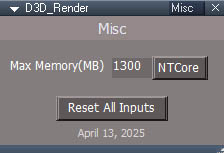
Max Memory(MB) - when tS memory usage reaches this point the render will stop
NTCore - press this button for a higher value(2100) if NTCore has been installed
Rest All Inputs - set all options to their default values
When the limit is reached:
Install the NTCore 4GB Patch https://ntcore.com/4gb-patch/ to increase trueSpace memory
Use this panel to setup command based scripts to run.
IDEA: some kind of presets?
A command script can be driven from the combination of a Watch Dog Event or Timer node attached to some animated object. This arrangement cannot be rendered normally since command scripts are not compatible with the animation rendering process. This method is an alternative way to drive the scripts during the D3D render process. This method assumes a chain of command nodes with the start and end command nodes encapsulated inside the same node. The start and end can be the same node for a chain of one. The hooks will disconnect the Control In connector from the Timer or Watch Dog and add a return node to the end of the chain. The input does not have to be a Watchdog or Timer, those are just the most likely input nodes and no input nodes is also an option.
RemoteRunComplete node is the return node added to the scripts
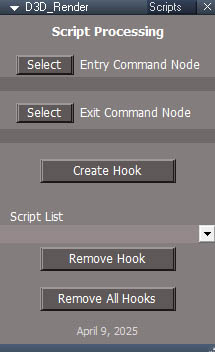
Select Entry Command Node - select the first command node that will run
Select Exit Command Node - select the last command node in the chain of command nodes. Exit can be the same node as the Entry.
Create Hook - creates a link that will automatically run the chain of command nodes while rendering the sequence. The Entry Command Node will be added to the list of scripts.
Script List - dropdown will show what scripts will be executed during each animation frame.
Remove Hook remove the selected hook and reconnect the original watchdog or timer.
Remove All Hooks remove all the assigned hooks and restore all the original command script connections
SyncSpecial.zip - c++ source code for visual studio 2008
potential future todo, "Your current D3D Render code for clips does not take into account unlinked clips"
April 18 2012:
Works with Std/Rosetta(no modelspace) version, gets the proper animation
range to render, better button highlighting and is more reliable.